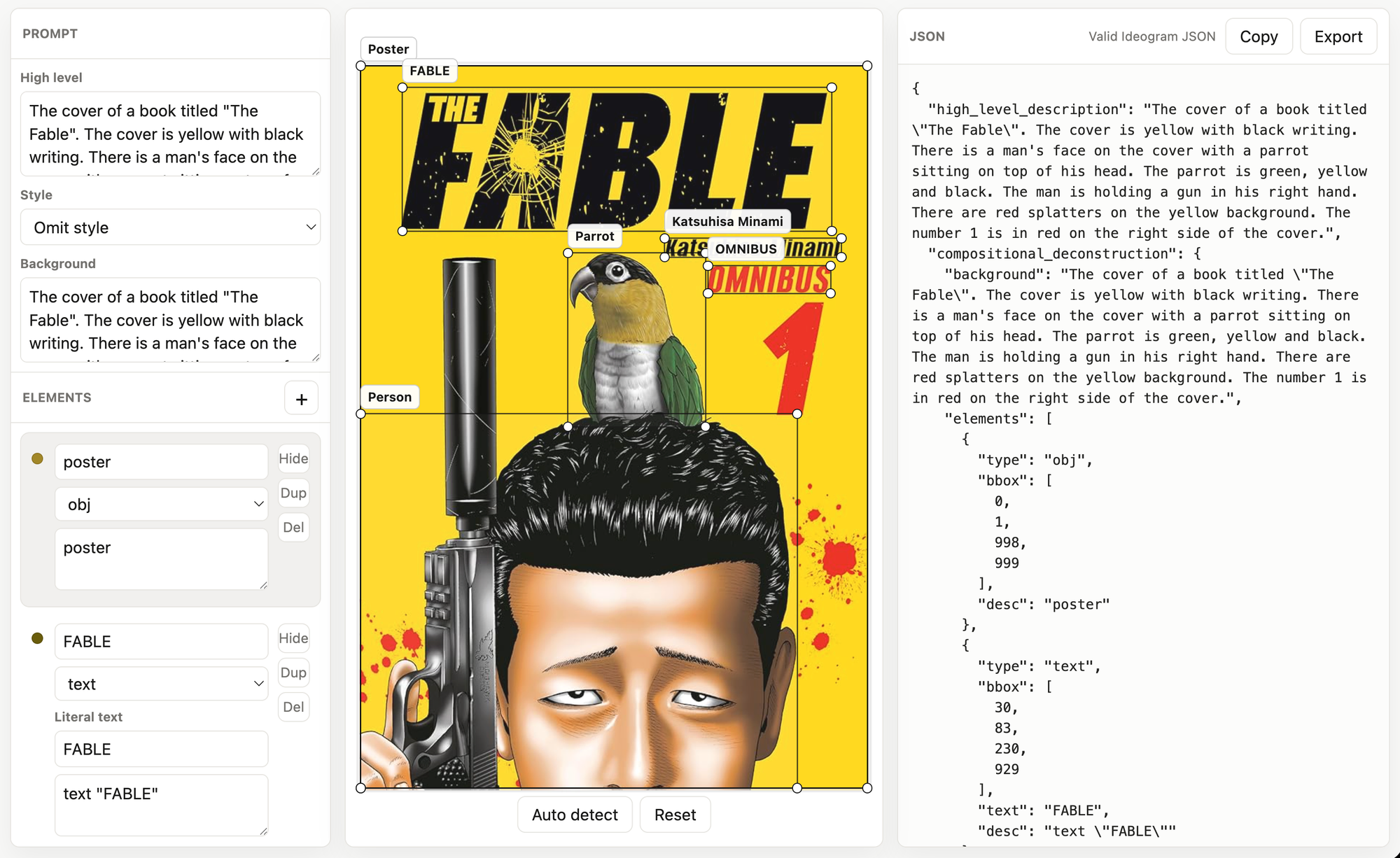
Image to Prompt is a local web app that turns an uploaded image into an editable Ideogram 4 JSON prompt.
It uses Florence-2 to draft a scene description, detect objects, find text regions with OCR, sample a color palette, and place everything into a structured prompt that you can refine before copying or exporting.
Why
Image prompts are hard to rebuild by hand because the useful details are spread across composition, objects, text, layout, background, color, and style. This app gives you a structured first draft from a reference image, then lets you correct the parts that matter.
Use it when you want to:
- Turn a reference image into editable Ideogram JSON.
- Preserve the rough layout of objects and text with normalized bounding boxes.
- Separate text regions from visual objects so typography can be described clearly.
- Quickly copy a schema-checked prompt into another workflow.
- Work locally instead of sending images through a hosted prompt service.
What
After you upload an image, the app runs Florence-2 locally and builds:
- A high-level description of the full image.
- A background description.
- Object regions from visual detection and dense region captions.
- Text regions from OCR with bounding boxes.
- A sampled color palette.
- A live Ideogram JSON prompt in the right panel.
The generated JSON uses normalized bbox coordinates in [ymin, xmin, ymax, xmax] order, with each value from 0 to 1000. These are layout coordinates, not pixel coordinates, so they remain stable across different image sizes.
How to use the editor
1. Upload an image
Click Choose image or drag an image into the center panel. The app analyzes it and creates editable zones over the image.
2. Review the prompt fields
The left panel contains the main prompt fields:
- High level: the broad description of the image.
- Style: optional
style_description presets.
- Background: the scene or setting behind the detected elements.
- Elements: detected objects and text regions.
By default, the app omits style_description. Select a style preset only when you want the JSON to include style fields. Presets are practical app defaults, not official Ideogram presets.
3. Edit detected elements
Each element can be adjusted before export:
- Click a box on the image or a row in the left panel to select it.
- Drag a box to move it.
- Drag a corner handle to resize it.
- Change an element type between
obj and text.
- For text elements, edit the literal text separately from the description.
- Use Hide to omit an element from the JSON without deleting it.
- Use Dup to duplicate a region.
- Use Del to remove a region.
- Use the + button to add a new manual box.
Use Auto detect to rerun the model on the current image. Use Reset to return to the original model output.
4. Use the JSON panel
The right panel updates as you edit. It shows whether the current output is valid Ideogram JSON.
- Copy writes the JSON to your clipboard.
- Export downloads
ideogram-prompt.json.
- You can also edit the JSON directly; the app will try to sync supported changes back into the editor.
Hidden elements are not included in the exported JSON.
Output structure
A typical output looks like this:
{
  "high_level_description": "A concise description of the uploaded image.",
  "compositional_deconstruction": {
    "background": "The background and setting.",
    "elements": [
      {
        "type": "obj",
        "bbox": [120, 80, 760, 650],
        "desc": "main subject"
      },
      {
        "type": "text",
        "bbox": [40, 120, 180, 900],
        "text": "VISIBLE WORDS",
        "desc": "text reading \"VISIBLE WORDS\""
      }
    ]
  }
}
If you choose a style preset, the app adds a style_description object with fields such as aesthetics, lighting, medium, photo or art_style, and optional color_palette.
Now copy the json and use it to prompt your locally running Ideogram app
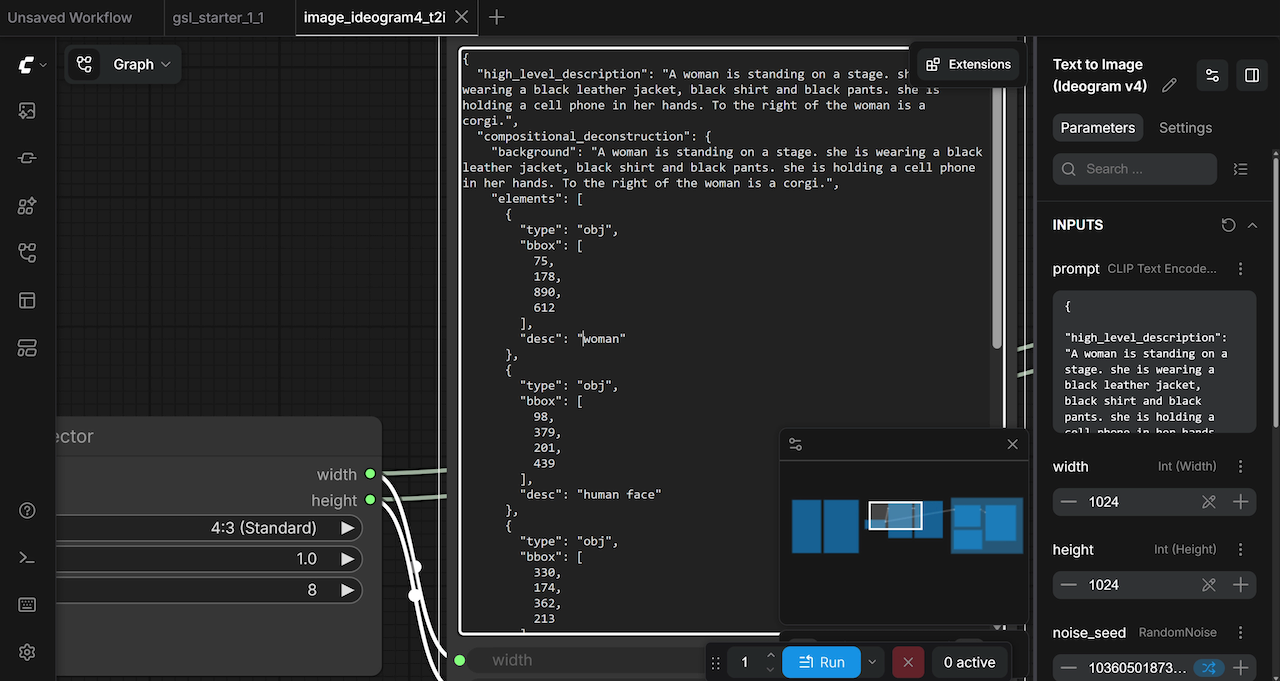


Image to Prompt is a local web app that turns an uploaded image into an editable Ideogram 4 JSON prompt.
It uses Florence-2 to draft a scene description, detect objects, find text regions with OCR, sample a color palette, and place everything into a structured prompt that you can refine before copying or exporting.
Why
Image prompts are hard to rebuild by hand because the useful details are spread across composition, objects, text, layout, background, color, and style. This app gives you a structured first draft from a reference image, then lets you correct the parts that matter.
Use it when you want to:
What
After you upload an image, the app runs Florence-2 locally and builds:
The generated JSON uses normalized
bboxcoordinates in[ymin, xmin, ymax, xmax]order, with each value from0to1000. These are layout coordinates, not pixel coordinates, so they remain stable across different image sizes.How to use the editor
1. Upload an image
Click Choose image or drag an image into the center panel. The app analyzes it and creates editable zones over the image.
2. Review the prompt fields
The left panel contains the main prompt fields:
style_descriptionpresets.By default, the app omits
style_description. Select a style preset only when you want the JSON to include style fields. Presets are practical app defaults, not official Ideogram presets.3. Edit detected elements
Each element can be adjusted before export:
objandtext.Use Auto detect to rerun the model on the current image. Use Reset to return to the original model output.
4. Use the JSON panel
The right panel updates as you edit. It shows whether the current output is valid Ideogram JSON.
ideogram-prompt.json.Hidden elements are not included in the exported JSON.
Output structure
A typical output looks like this:
If you choose a style preset, the app adds a
style_descriptionobject with fields such asaesthetics,lighting,medium,photoorart_style, and optionalcolor_palette.Now copy the json and use it to prompt your locally running Ideogram app