
You want to train AceStep LoRAs but don't have the hardware to do it in Ace-Step 1.5, Side-Step might be the right tool for you.
It is optimized for smaller GPU's and only loads the models necessary for the training.
Side-Step comes with an easy comprehensible cli-wizard that guides you through the training.
Each step comes with a little guide. Presets make it easy to select the right mode for your hardware.
The first time Side-Step starts, it will ask you for the checkpoints folder. Since the checkpoints are at the default location you can just confirm with Enter.
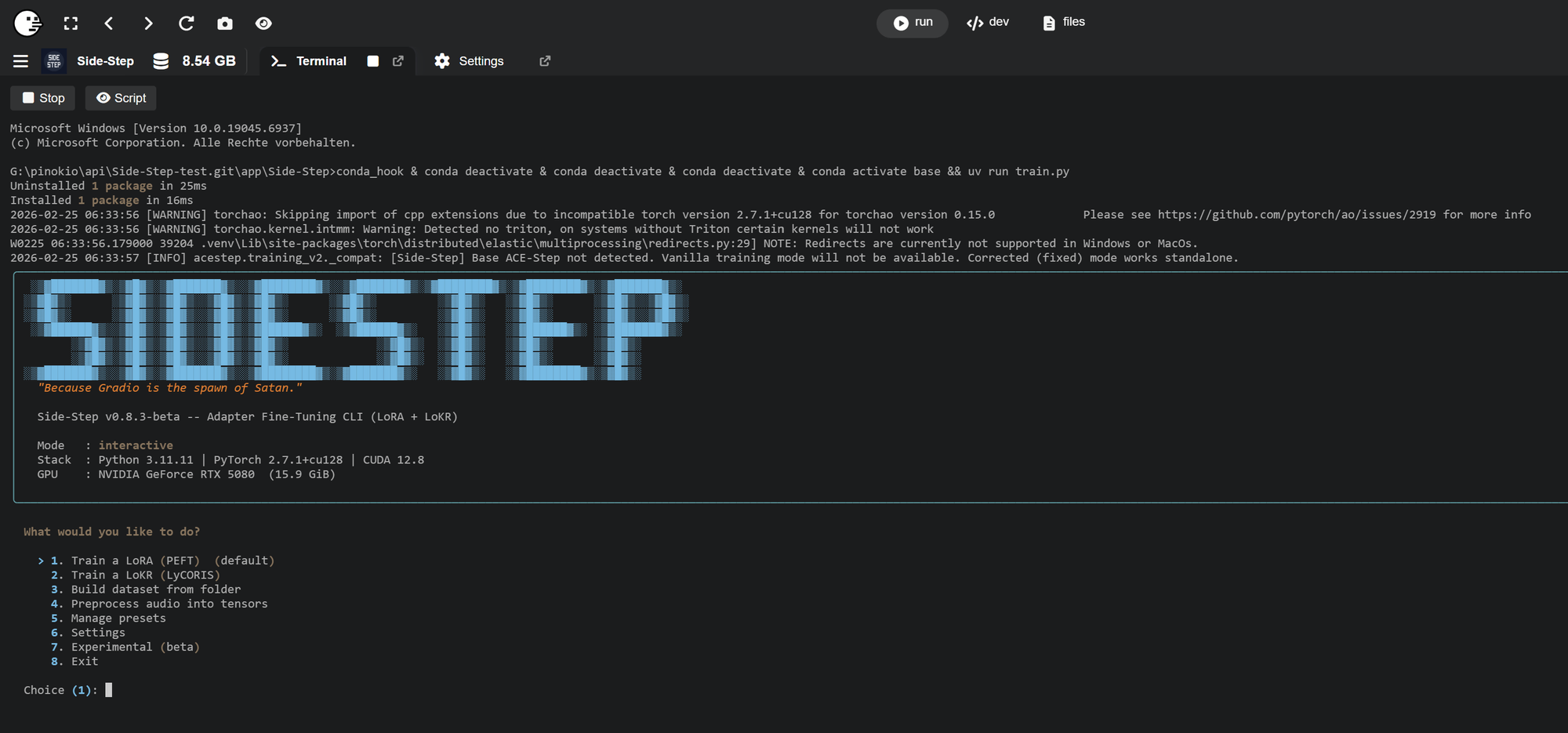
The first step is 3. Build dataset from folder.
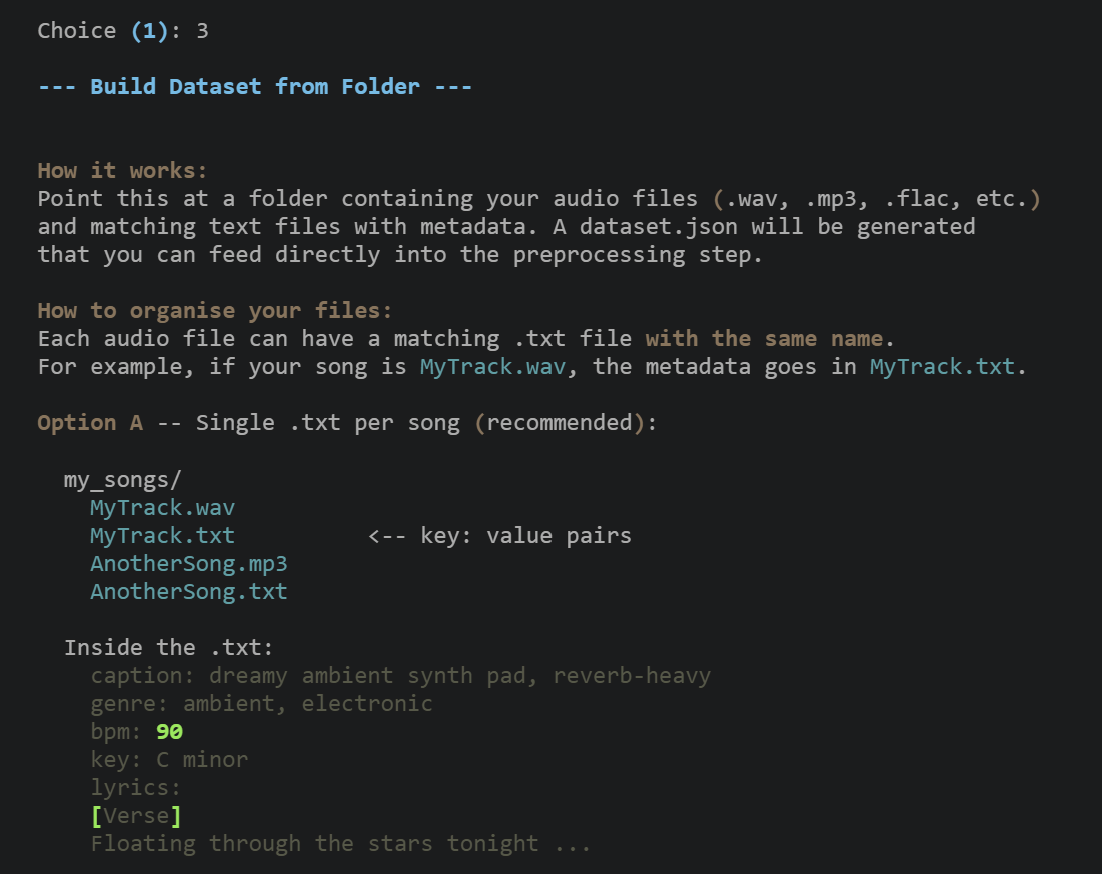
Create a folder and put in the songs you want to use for the training. If you are using instrumental files, that's all you need to do.
If you are using songs with Lyrics each audio file needs an according text file with caption, genre, bpm, key and lyrics. The lyrics should come with tags to help the model recognize verse, chorus and so on.
Creating the captions can be done with the automatic captioning tool in Acestep or manually.
In Side-Step set the location of your datasets folder. Side-Step will create a dataset.json file and place it into your dataset folder.
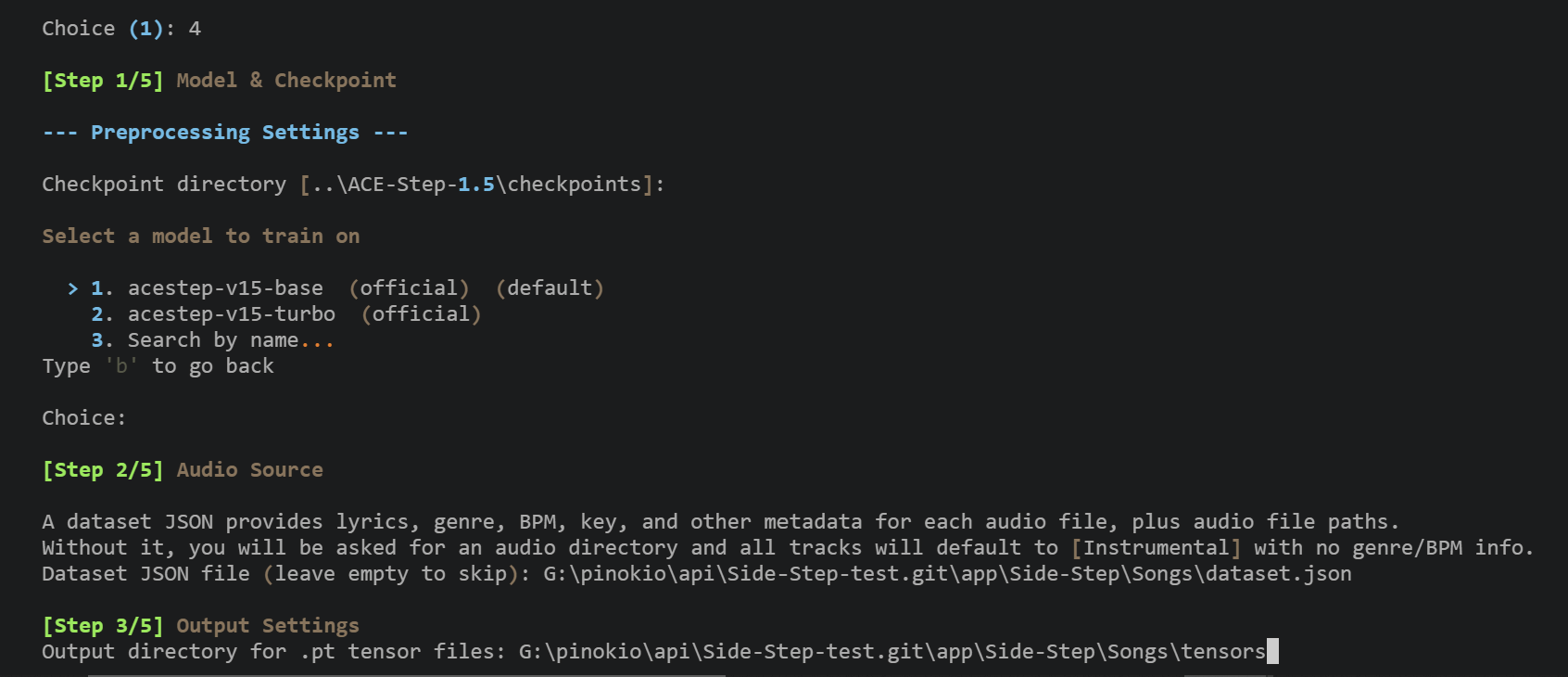
The next step is 4. Preprocess audio into tensors.
In this step tensors will be created from your audio files and placed in a folder of your choice.
- Select the model you want to use
- Set the absolute path to dataset.json
- Set your desired path and name of the tensors output folder.
Now the training can begin.
The last step is 1. Train a LoRA.
Here you can select a preset that matches your hardware and liking, choose a preset you saved in a previous training
or select your preferred settings yourself Start fresh .
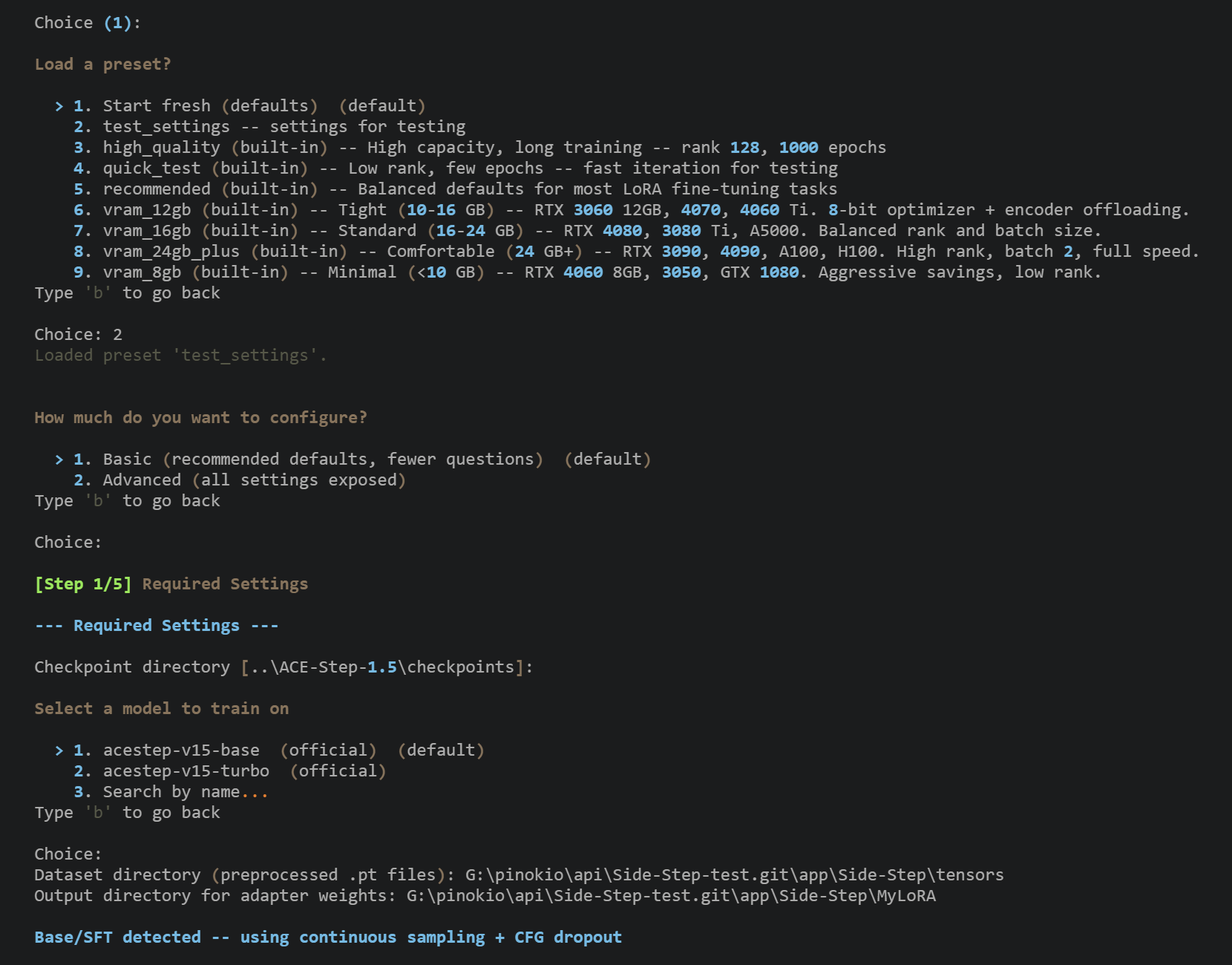
Please note that the optimizer adamw8bit may not work on GTX and RTX 20 series. In that case simply use adamw instead.
- Select the model you want to use (preferably the same model you used to create the tensors)
- Set the absolute path to your tensors folder
- Set the desired output location for your finished Lora
- Select your desired settings for the training.
The default values are mostly fine. So you can just confirm most of the settings.
In case you selected the wrong setting you can always press b to return to the previous step.
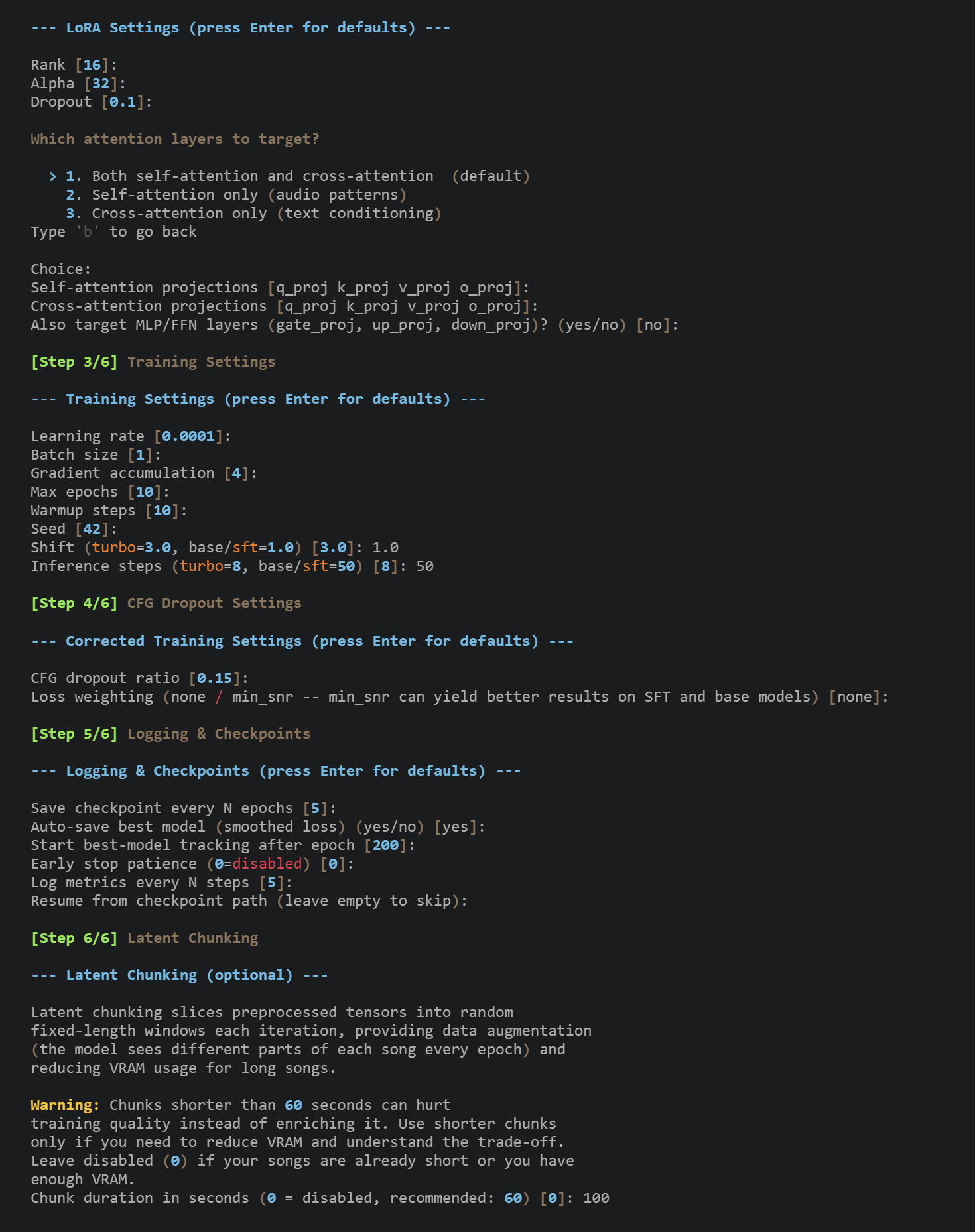
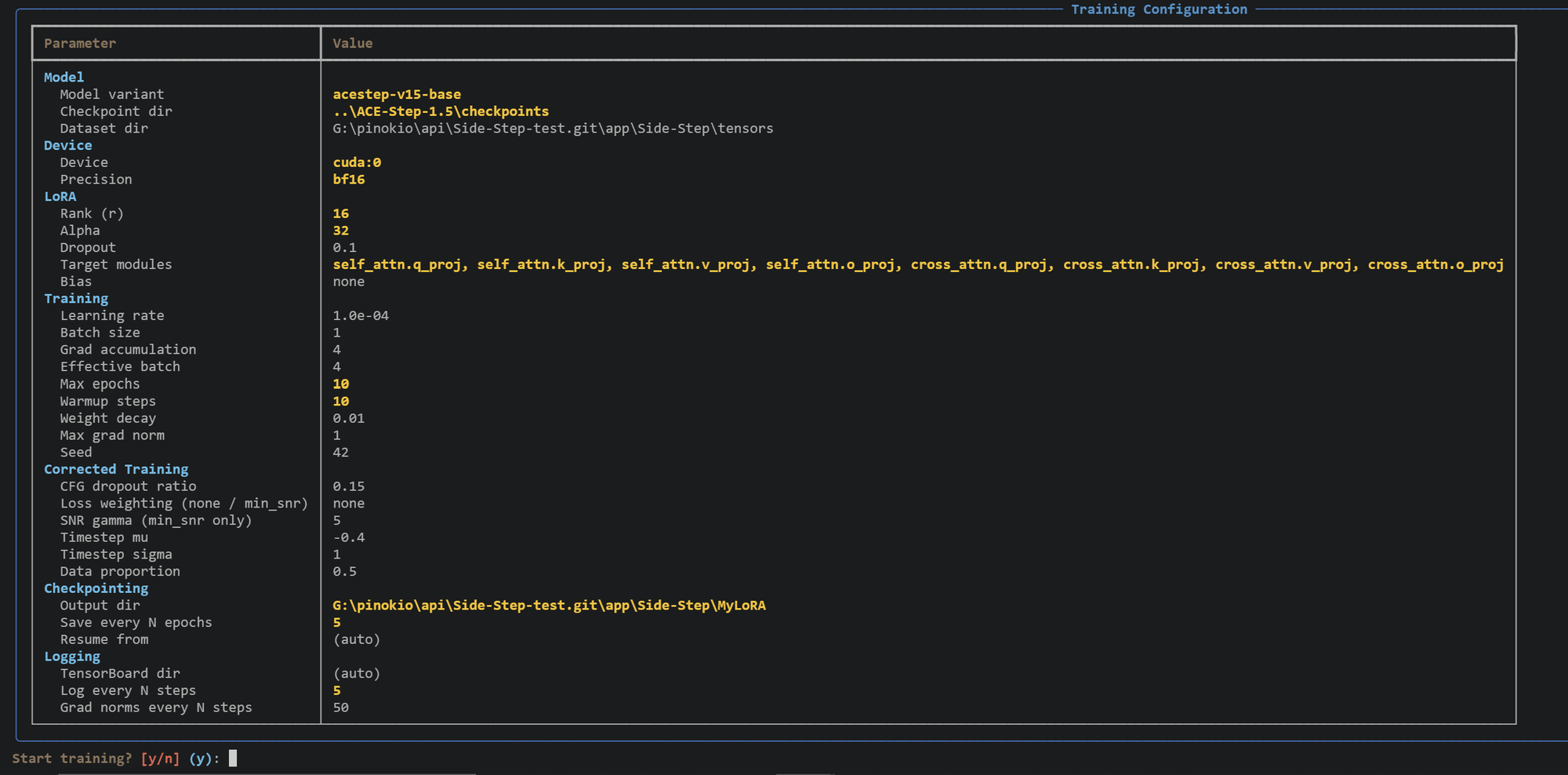
Let Side-Step do the magic.
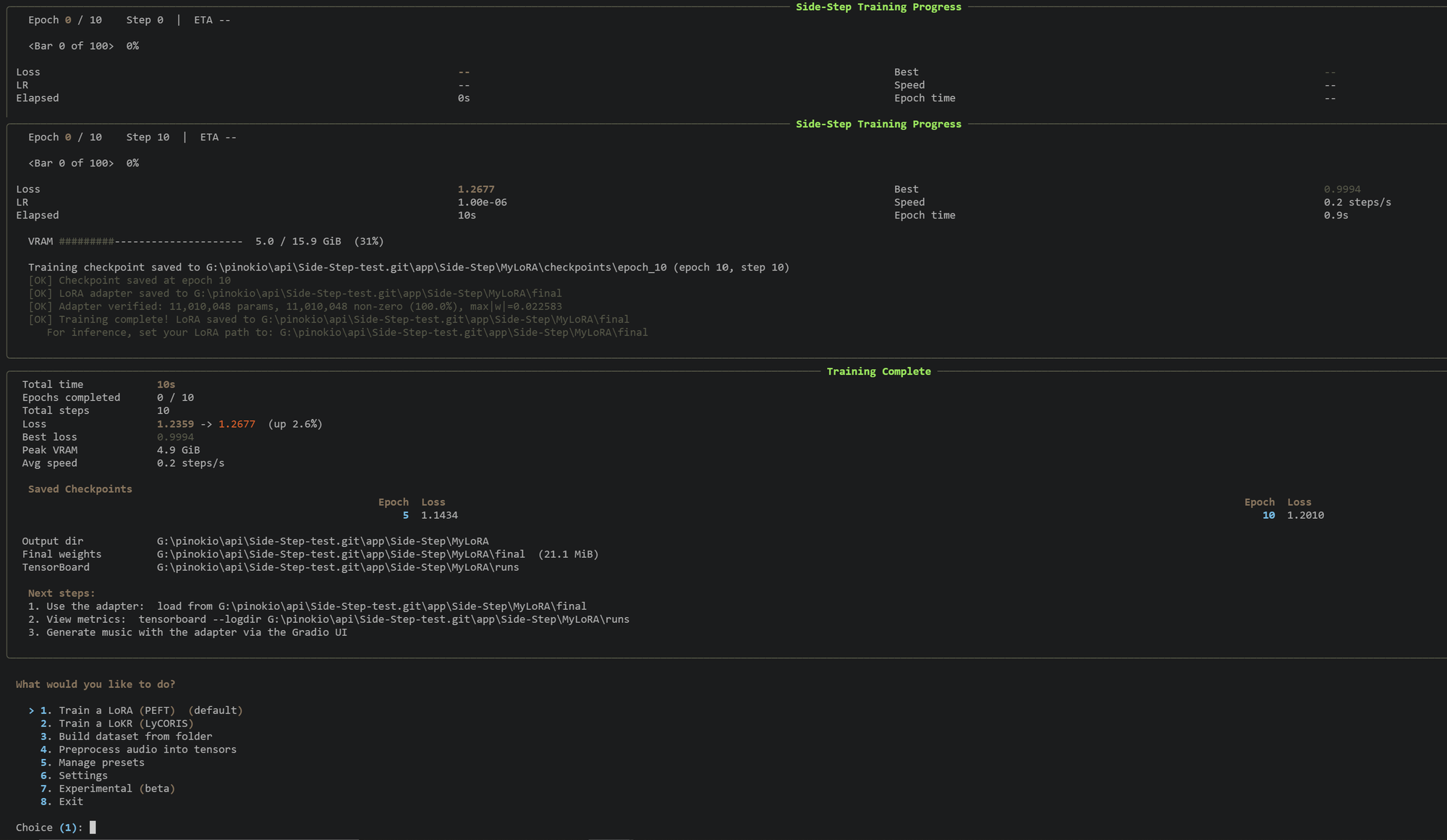
If you want to import the Lora in AceStep make sure to initialize without 8-bit Optimization since LoRAs in AceStep don't support it.