
StableDAW: A Full AI Music Studio That Runs on Your Own Computer

StableDAW: A Full AI Music Studio That Runs on Your Own Computer
StableDAW is a web based DAW built around Stable Audio 3 that you can install with one click
See X announcement with even more examples here https://x.com/cocktailpeanut/status/2065470209280843818?s=20
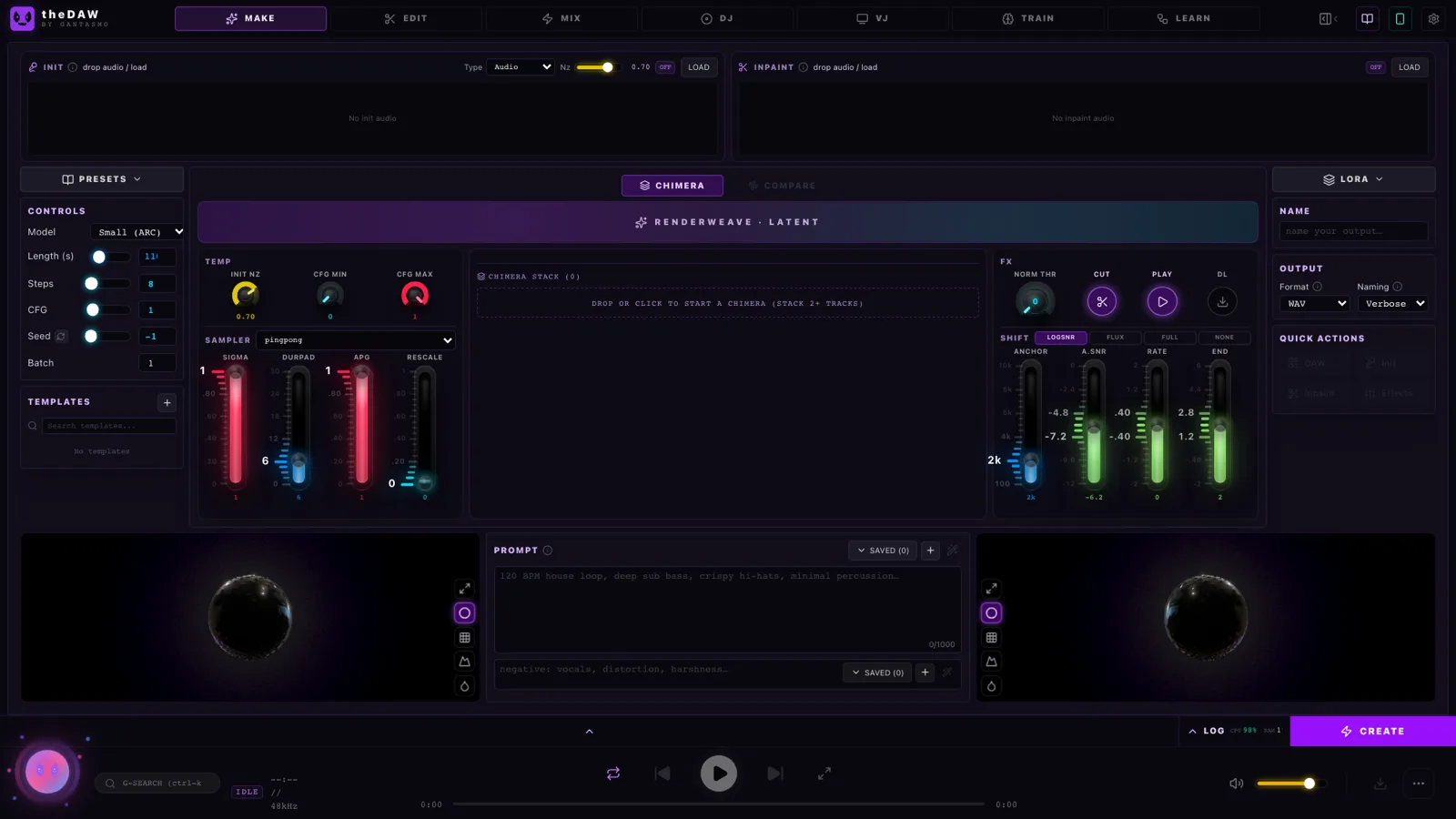
If you've played with AI music tools, you know the usual trade-off: the easy ones live in the cloud (your prompts, your audio, someone else's servers, a monthly bill), and the local ones are a weekend of Python environments, CUDA wheels, and gated model downloads.
StableDAW (the app itself is called theDAW, by GANTASMO) splits the difference in a way I haven't seen before. It's a real digital audio workstation -— multitrack timeline, mixer, effects, even a two-deck DJ console -— wrapped around Stability AI's Stable Audio 3 models, and the whole thing runs locally in your browser.
I've been running it on a plain Mac (no NVIDIA GPU needed), and every screenshot in this post marked "live" was captured from my own running instance.
What it actually is
theDAW is organized into seven workspaces, and the tab bar across the top tells you the whole story: MAKE => EDIT => MIX => DJ => VJ => TRAIN => LEARN. The pitch is that it covers the full path from "I have an idea" to "I'm performing this live."
- MAKE — generate audio from text prompts, from your own recordings, or both
- EDIT — arrange clips on a multi-track timeline and render a mixdown
- MIX — run audio through a chain of mastering and creative effects
- DJ — mix your generated tracks on a two-deck console with sync and FX
- VJ — a 3D audio-reactive visualizer for the live show
- TRAIN — fine-tune the model on your own sounds with LoRA adapters
- LEARN — a family tree showing how every track descended from its sources
Everything you generate is saved automatically to a library with its full recipe (prompt, model, seed, settings), so nothing is ever lost to a closed tab.
System Requirements
It works out of the box on weak hardware. The upstream app wants to load the 10 GB GPU-class "medium" model at startup and refuses to generate until it succeeds. The launcher defaults the startup model to Small instead, which runs on CPU. So on a Mac or a GPU-less PC, you click Install, click Start, and generation just works. If you have an NVIDIA card with ~8 GB VRAM, two extra menu buttons download the Medium models for higher quality and longer clips (up to 380 seconds vs 120).
| Model | Size | Hardware | Max length |
|---|---|---|---|
| Small | ~3.5 GB | CPU or any GPU | 120 s |
| Medium | ~10.4 GB | NVIDIA, ~8 GB VRAM | 380 s |
| Medium-RF | ~10.4 GB | NVIDIA, ~8 GB VRAM | LoRA training base |
MAKE: where the magic starts
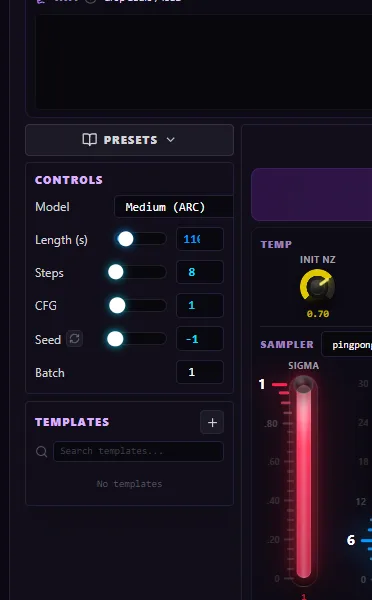
The generation form looks simple — type a prompt, pick a duration, hit CREATE — but it's quietly one form driving four different modes:
- Text-to-audio: the classic: "Lo-fi boom bap meets orchestral strings, 84 BPM"
- Audio-to-audio: feed it a voice memo, a whistled melody, or a pattern from the built-in drum sequencer, and a noise slider controls how far the result drifts from your source
- Inpainting: paint a region on a waveform and regenerate just that slice ("replace these 4 seconds with a punchy drum fill")
- Continuation: extend an existing clip past its ending
And then there's Chimera, the feature I didn't know I wanted: stack several clips, and it blends and beat-aligns them into a single new generation at a target tempo. It's the audio equivalent of image-blending —- take a drum loop, a vocal sketch, and a synth pad, and fuse them into one coherent track.
Small quality-of-life touches are everywhere: a magic-prompt button that seeds prompt text for you, one-click seed reroll, prompt history, templates that store entire parameter sets, and a four-mode spectrogram viewer if you like looking at your audio as much as listening to it.
EDIT and MIX: an actual DAW, not a toy
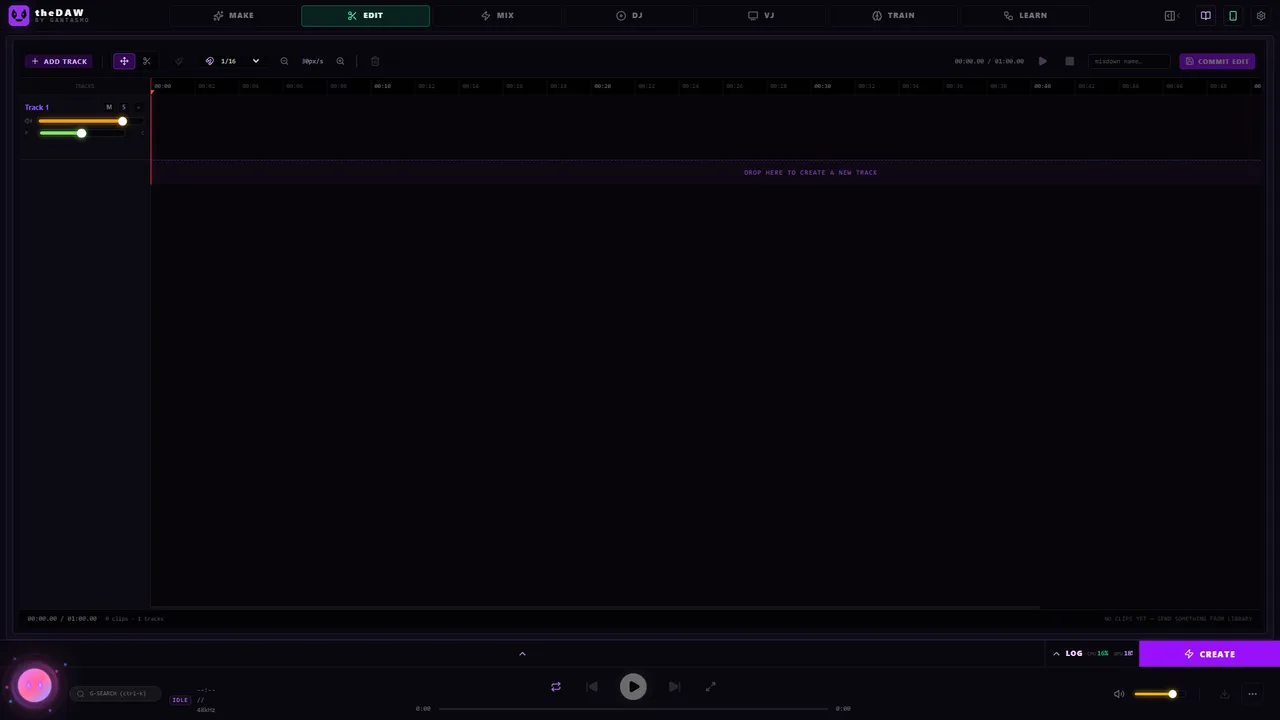
Generated clips route straight into a multi-track timeline with the tools you'd expect from a real editor: drag clips between tracks, cut with source alignment preserved, snap grid (1/4 to 1/16), per-clip trim and fade handles, per-track volume/pan/mute/solo. Commit Edit renders everything to a 44.1 kHz stereo WAV -- fades, panning and all -- and saves it back to the library.
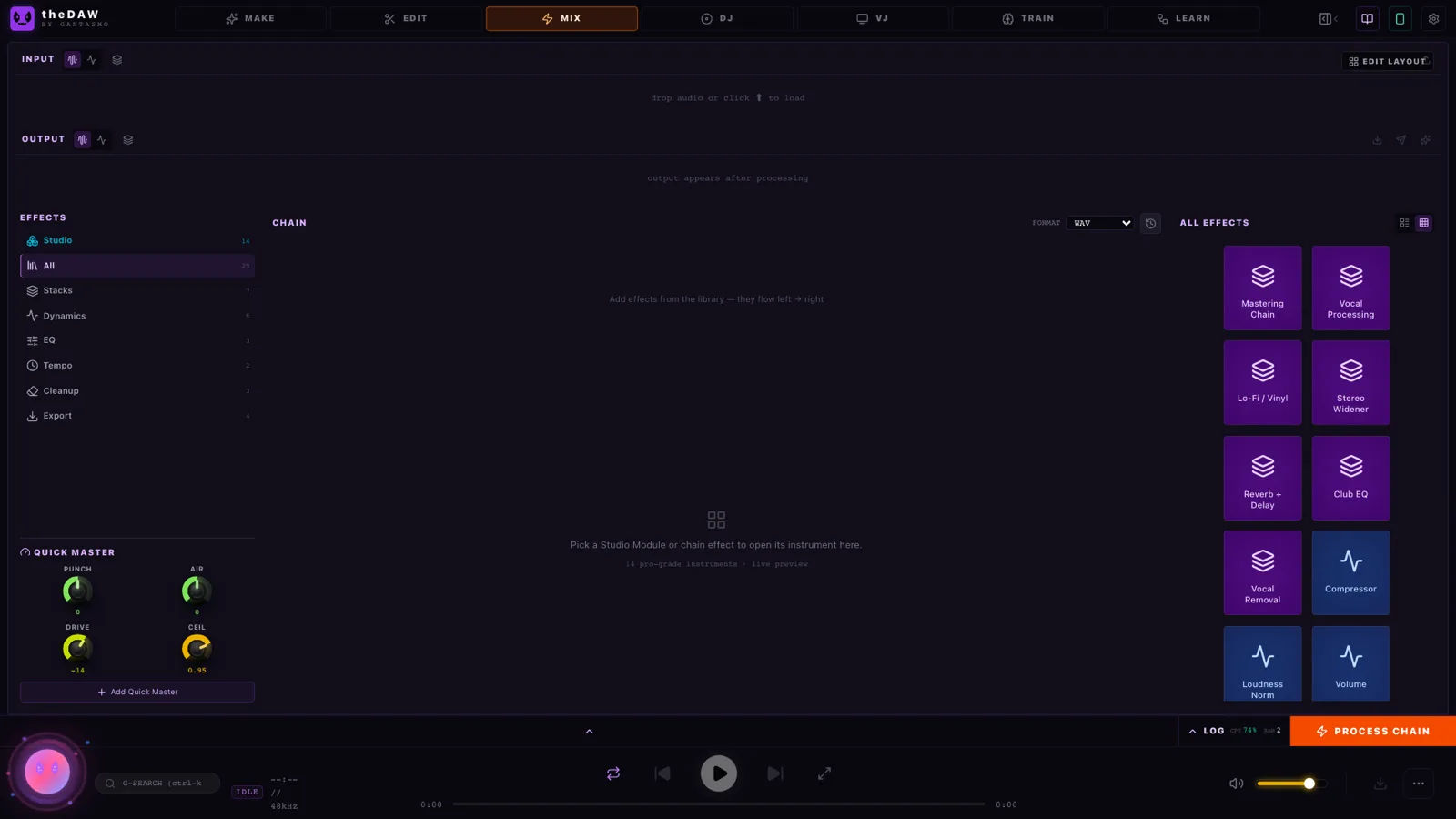
The MIX tab chains 24 FFmpeg-powered effects: a full mastering chain, compression, EQ, reverb, delay, lo-fi vinyl, stereo widening, vocal processing, LUFS loudness normalization, pitch shift, denoise, declick — plus export to FLAC, MP3, AAC, or Opus. Four macro knobs (Drive, Width, Air, Punch) give you the "just make it sound better" path, and a process history lets you promote any earlier result back to the source slot.
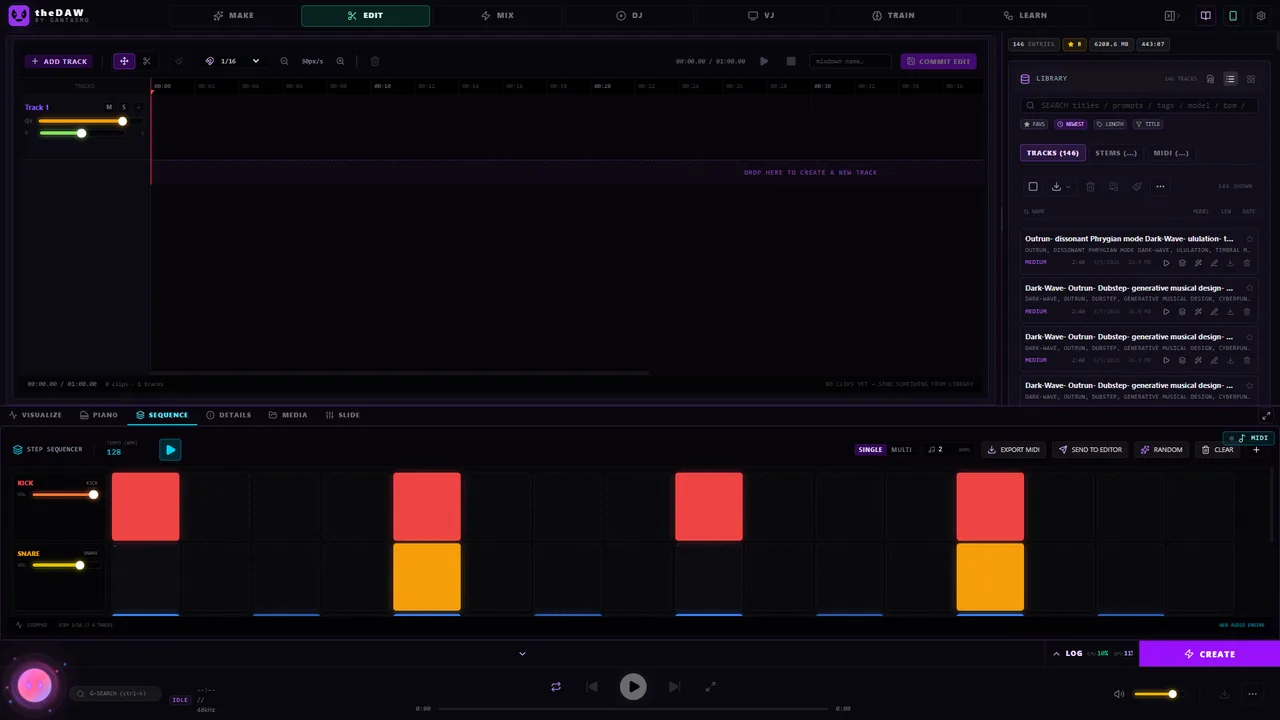
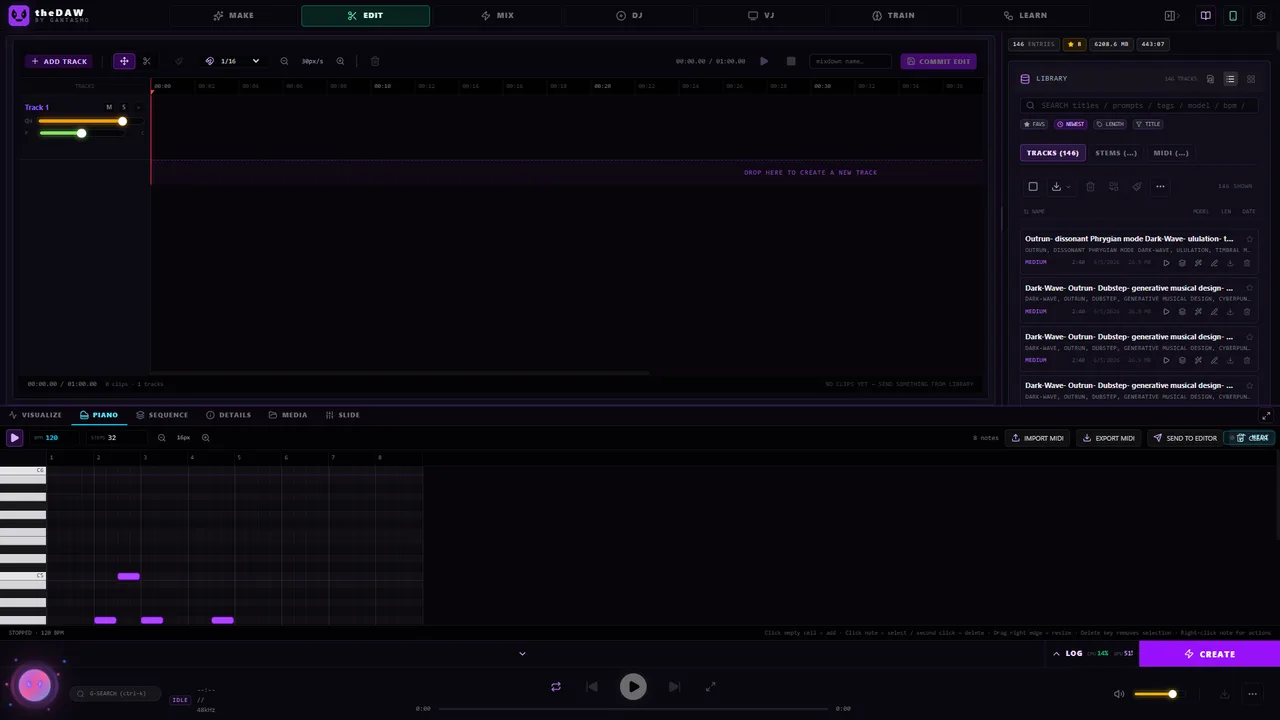
There's also a bottom panel with a 16-step drum sequencer and a piano roll (MIDI import/export included), so you can sketch a pattern and use it as generation input -— a surprisingly effective loop: sequence => render => feed to the AI => arrange the result.
DJ and VJ: the part that makes it a party trick
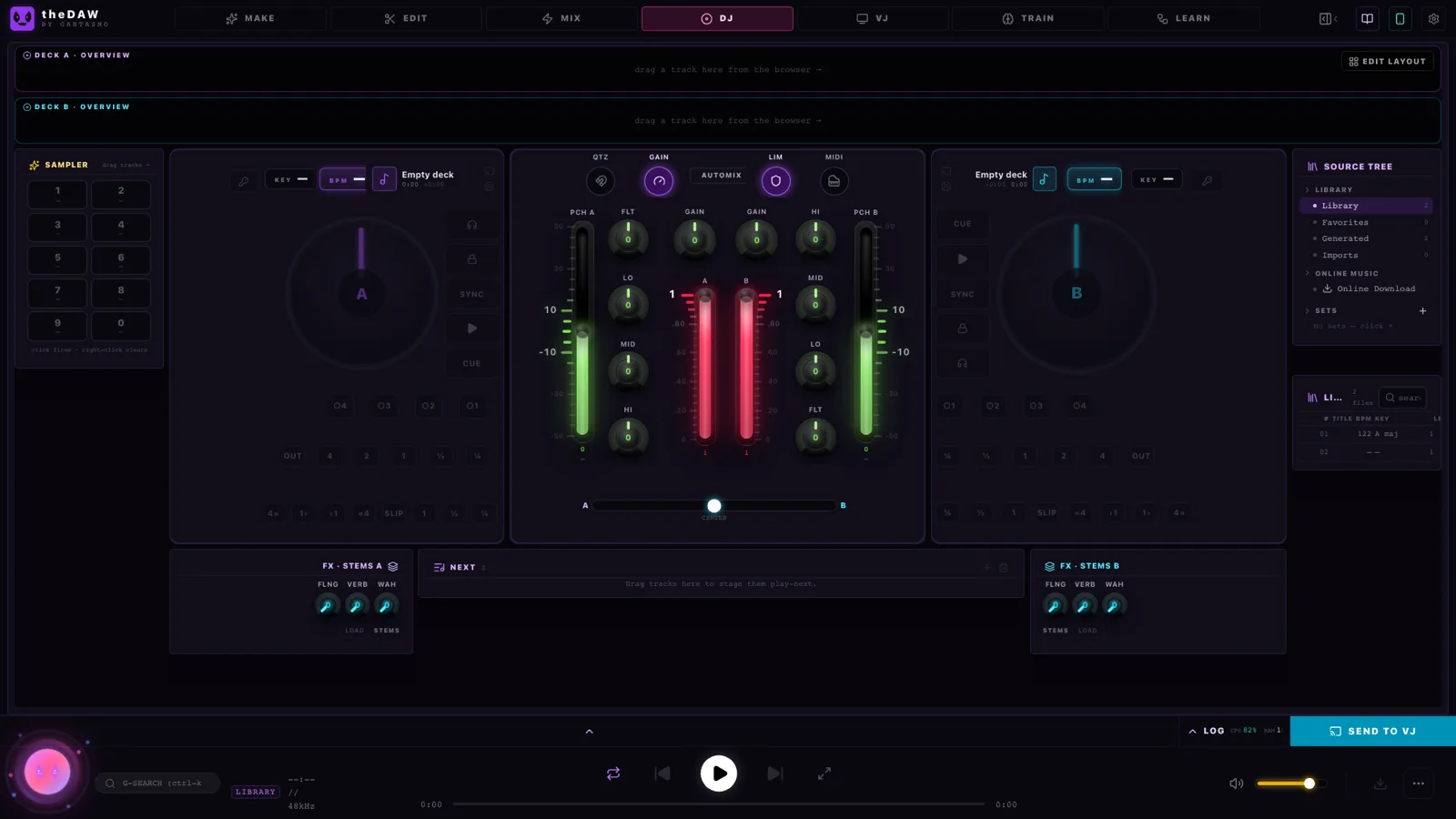
This is where theDAW stops looking like "an AI tool with editing bolted on" and starts looking like someone's complete vision. The DJ tab is a serious two-deck console: beatmatch sync with continuous lock, key-lock, 3-band EQ per channel, filter knob, four hotcues, beat loops, slip mode, a ten-pad sampler, even an Automix that sequences and crossfades a set on its own. It loads tracks straight from your generation library -— so you can literally DJ a set of music that didn't exist an hour ago. MIDI controllers are supported with a library of ~110 device profiles and a learn-by-capture mode.
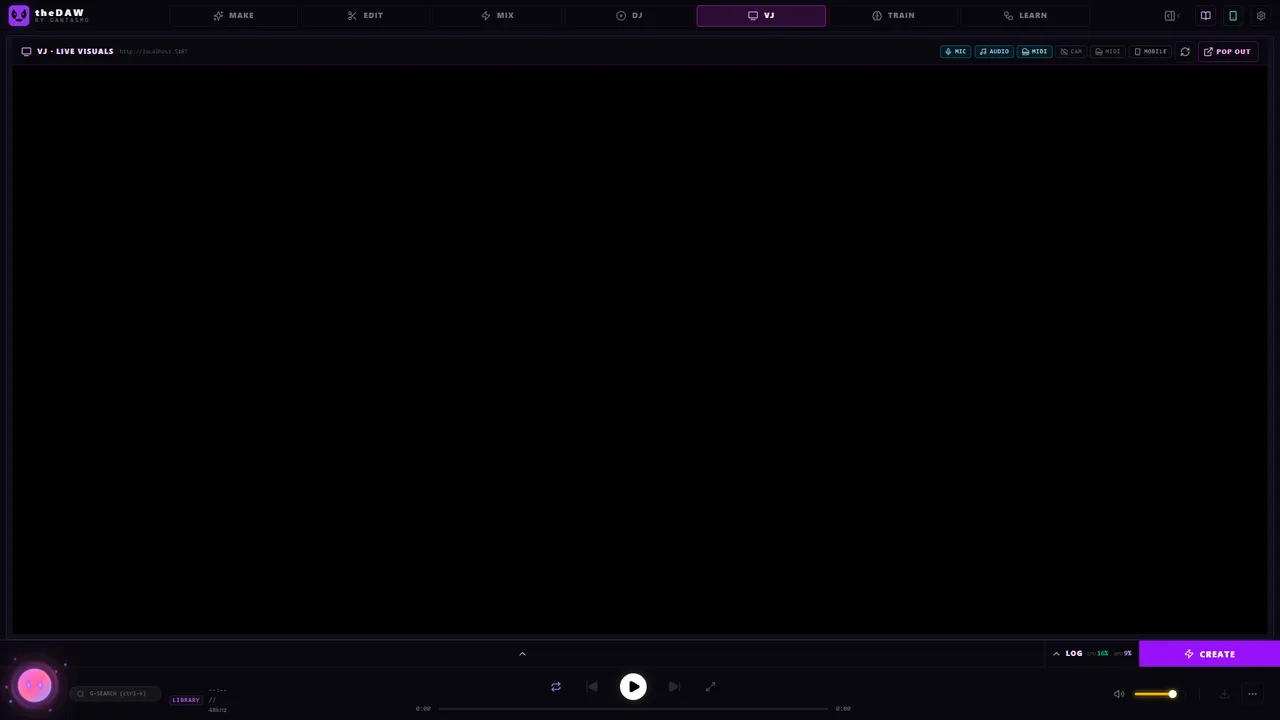
The VJ tab pairs it with a 3D audio-reactive visualizer -— a glowing spectrogram terrain with bloom, particles, and camera flight modes —- that pops out into its own window for a second screen. It can even take a camera feed as input, including a phone camera over Wi-Fi via QR code.
TRAIN and LEARN: the unexpectedly deep end
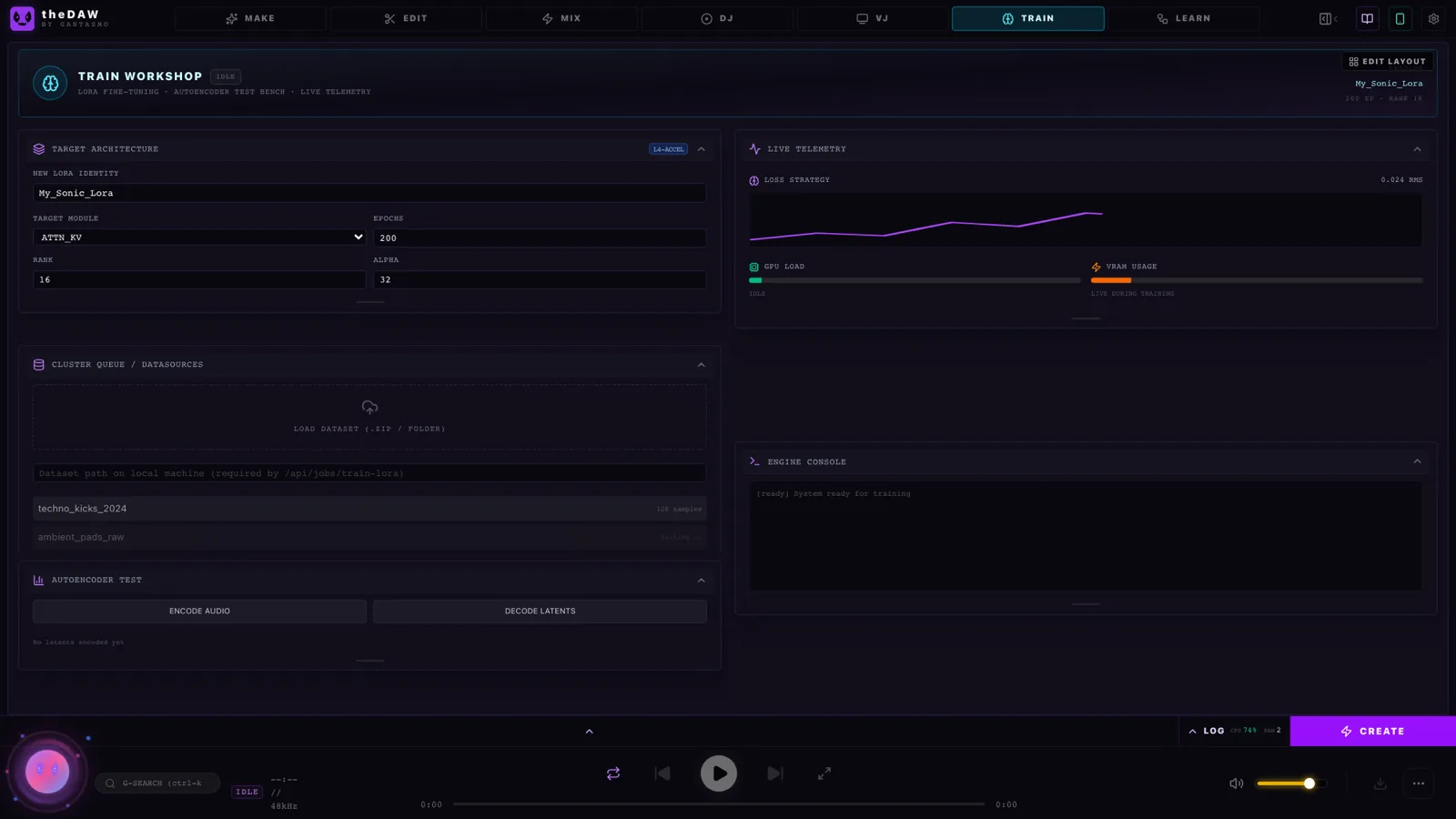
If you have an NVIDIA GPU and the Medium-RF base model, the TRAIN tab fine-tunes LoRA adapters on your own audio —- eight adapter types, layer filtering, live training telemetry. In plain terms: teach the model your sound, then stack adapters at adjustable strengths during generation. This is the kind of capability that normally lives in research repos with twelve-step READMEs, here it's a tab in a web UI. (Fair warning: a few training endpoints are still being built out, and the UI says so when you hit one.)
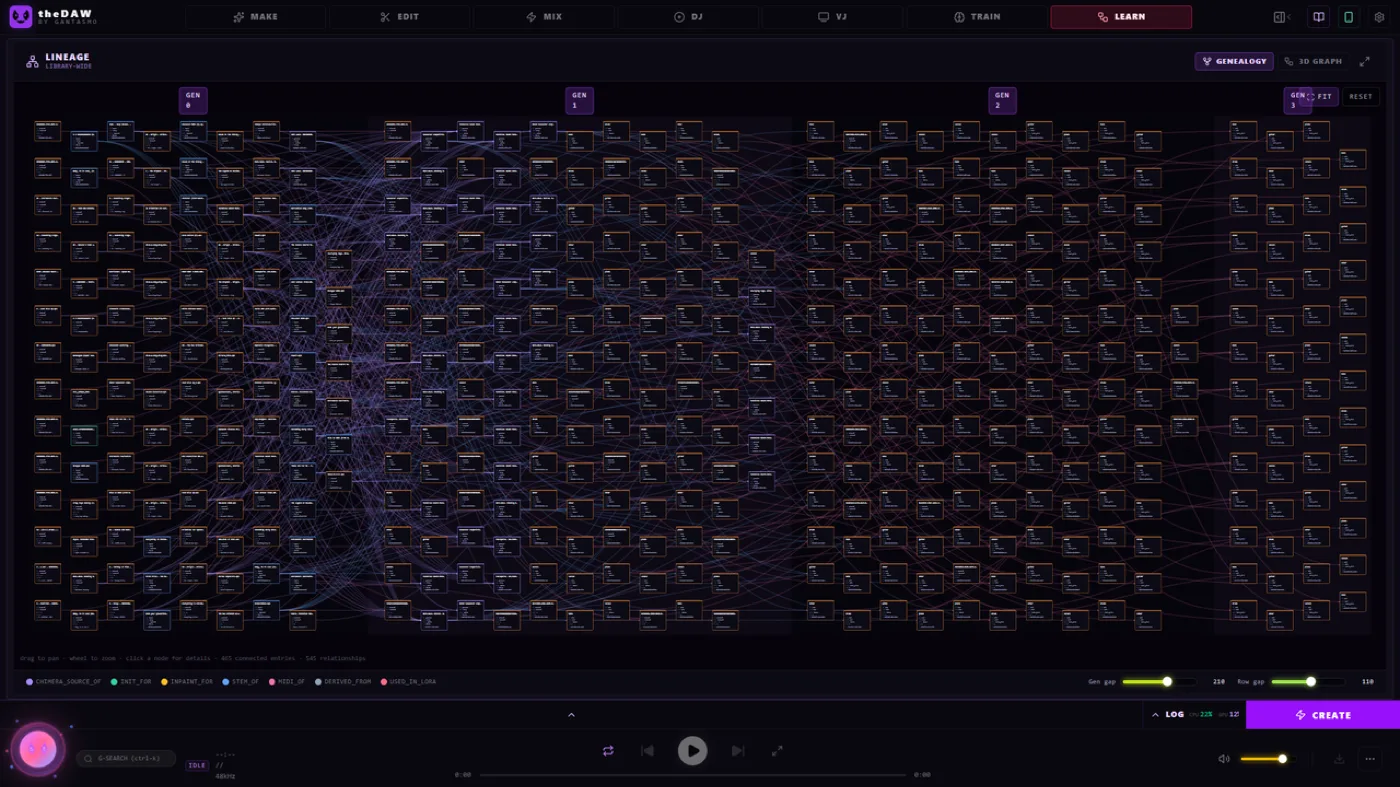
LEARN might be my favorite pure-fun feature: an interactive genealogy graph of your whole library, in 2D and 3D. Every remix, inpaint, stem split, and Chimera blend draws an edge to its parents, so you can fly a camera through a galaxy of your own tracks and trace any piece back to the voice memo it started from.
The library remembers everything
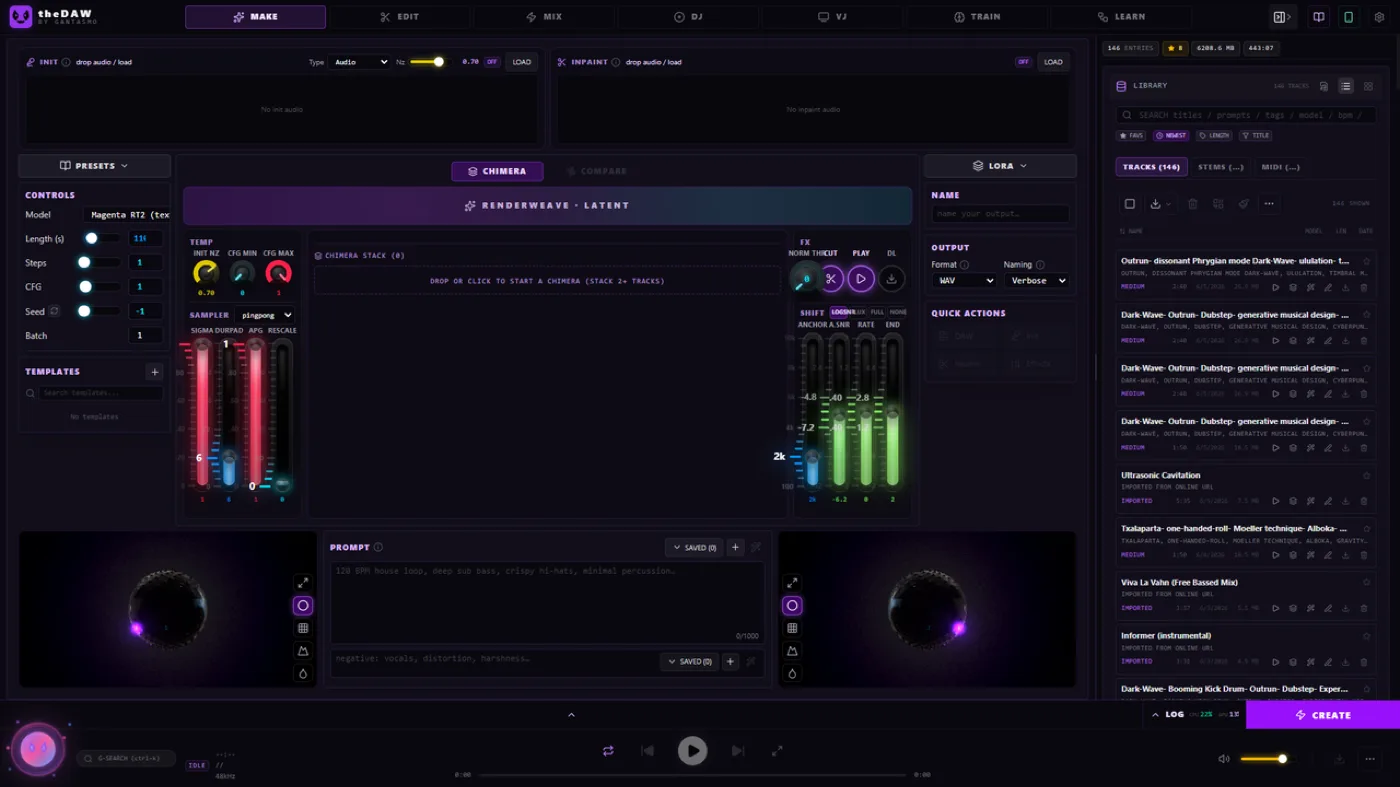
Every render lands in a disk-backed library with its complete generation recipe: prompt, model, duration, steps, CFG, seed, timestamp. Full-text search, favorites, inline playback, and send-to-editor from any row. After a few sessions this becomes the real asset —- a searchable archive of every idea you've tried, all stored on your own disk.
Tips
- First start is slow. The backend imports PyTorch before it answers, so an "API UNREACHABLE" banner for the first minute is normal. It clears on its own.
- CPU generation takes patience. The Small model on a CPU produces a 30-second clip in minutes, not seconds. Fine for sketching; the Medium model on a GPU is where it gets fast.
- Budget the disk. ~10–15 GB for the environment plus the Small model, and ~10 GB more per optional Medium model.
- Reset deletes your library. The launcher's Reset button wipes the app folder including generated audio. Downloaded models survive; your renders don't. Export anything you love first.
- Ports 8600 and 5173 must be free — the app pins both.
- The Magenta RealTime 2 and Suno cloud integrations exist in the app but are extras — the core studio needs neither.
Should you try it?
If you're curious about AI music generation and want to keep what you make -- your audio, your prompts, your trained adapters, all on your own machine -- this is the most complete local package I've seen. The one-click install removes the usual local-AI hazing ritual, the CPU-friendly default model means there's no hardware gate to just trying it, and the DAW around the model means a generated clip is a starting point instead of a dead end.
Try it: install Pinokio, then install the StableDAW launcher from its repository page. The app itself lives at github.com/gantasmo/stabledaw (MIT licensed), with a full User Guide covering every knob in this post.